How to Change Price on Product Image Without Photoshop
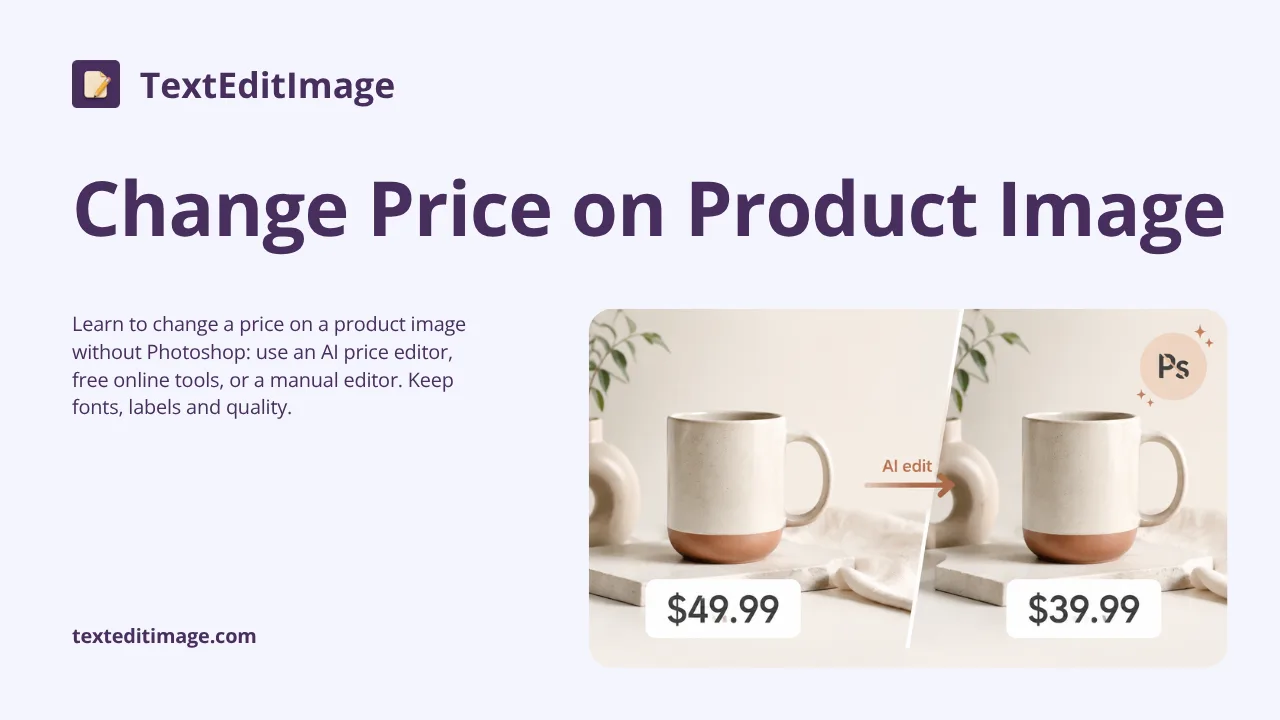
Learn to change a price on a product image without Photoshop: use an AI price editor, free online tools, or a manual editor. Keep fonts, labels and quality.

Changing a Price on a Product Image Without Photoshop
You have a product photo with an outdated price baked into the label, and the sale starts tomorrow. The design file is long gone, and nobody is around to reshoot the product. In the past this meant opening Photoshop, firing up the clone stamp, hunting for the exact font, and praying the background reconstruction did not leave a blurry patch behind the old digits.
You do not need any of that. Changing a price on a product image is now a job any online seller or marketer can finish in a couple of minutes, without Photoshop, without a designer, and without rebooting the whole campaign. This guide walks through the fastest ways to change a price on a product image, from an AI price editor that keeps the label looking untouched to free browser tools and a manual fallback.
[PLACEHOLDER-SCREENSHOT: a product photo with a price label before and after the price was changed]
Method 1: Change the Price with an AI Price Editor (Recommended)
The fastest way to change a price on a product image without Photoshop is an AI image text editor. Tools like TextEditImage read the existing price label, match the font, size, color and perspective, and redraw the new digits in place — while reconstructing the pixels behind the old price so nothing looks smudged.
How to change a price on a product image with TextEditImage:
- Go to TextEditImage.com and upload the product photo (PNG, JPG or WebP up to 10 MB).
- Type the price currently on the image into the "original text" box — for example "$49.99".
- Type the new price into the "replacement text" box — for example "$39.99".
- Press edit — the AI keeps the label design, currency symbol and surrounding artwork, and swaps only the digits.
- Download the finished 2K image.
The result keeps the label looking like it was always printed that way: same font weight, same spacing, same angle. If the price sits on a curved banner or a tilted tag, the AI follows that perspective automatically — something a flat text box can never do.
[PLACEHOLDER-SCREENSHOT: a shelf price tag with '$12.99' replaced by '$9.99' in the same font]
When the AI price editor wins
- You no longer have the design file — the label is flattened into the photo, and an AI editor rebuilds the text on the pixels directly.
- The font is custom or unknown — the tool samples the letterforms in the image instead of guessing a font name.
- The price is on a surface or at an angle — perspective and curvature are handled automatically.
- You need a quick sale update — edit, download, publish, done, in minutes.
One honest note: very small, ornate or heavily skewed digits are harder than clean straight prices. Start with a clear, high-resolution photo and your first edit usually lands close; most tools accept a follow-up instruction to refine it.
How to replace a price tag on a product photo in 5 steps
If you want the exact recipe for the most common case — a price tag or label on a product photo — here is the five-step version you can run in under five minutes:
- Upload the sharpest photo you have of the product, tag included.
- Name the old price exactly as it reads on the label — punctuation, decimals and symbol included.
- State the new price the same way, keeping the same currency and number format.
- Run the edit and let the AI swap only the digits; the product and surrounding artwork stay untouched.
- Zoom to 100% and check the new digits match the label weight and colour, then export at 2K.
Method 2: Change a Price with Free Online Tools
Between the AI editor and full manual editing sits a row of free browser tools. Each is a bridge for a specific job rather than a full pipeline, but they cover the common cases.
Canvas-style editors (Canva, Fotor): upload the product photo, add a new text layer over the price area, and download. Good when the new price fits in roughly the same spot and the label is simple. The trade-off: you are placing text on top, not replacing what is underneath, so the old digits can peek out unless the label has a clean background block.
Simple text-change pages: a handful of sites specialise in a single action — "replace the price text in the photo". You upload, type the old and new price, and they return an edited image. They work best for one-off changes on clear, straight labels; batch or heavy campaigns are better left to the AI tools above.
What the free tools cannot do: reliably match a custom font, keep text realistic on a curved or angled surface, or preserve quality if you export back to a compressed JPG carelessly. Use them for quick fixes, and keep your working file as a PNG.
Method 3: Manual Editing Without Photoshop (Photopea / GIMP)
If you want full control and do not mind a steeper learning curve, free desktop-style editors like Photopea (browser-based) and GIMP (desktop) substitute for Photoshop on price edits.
- Open the product photo in the editor.
- Select the old price area and remove it with the clone stamp or a healing tool, matching the label background.
- Add a text layer with the new price and set the font, size, color and position to match the label.
- Export at full resolution, ideally as PNG first.
This works — and it is the only approach where you can control every pixel — but it takes practice and several minutes per image. For a single label where you have time, it is a fine option. For a campaign with a deadline, the AI price editor in Method 1 wins on speed and consistency at once.
Which Method Should You Use?
| Your situation | Best method | Why |
|---|---|---|
| No design file, price on a finished photo | AI price editor | Rebuilds digits on the pixels, matches the font |
| Custom or unknown font in the label | AI price editor | Samples letterforms instead of guessing a font |
| Simple label, quick single fix, no pattern | Free online tool | Fast, no account in many cases |
| Full pixel control, time to spare | Photopea / GIMP | Manual control over every detail |
| Many product photos for a campaign | AI price editor | Consistent, repeatable, minutes per image |
Pro Tips for a Clean Price Change
- Use the highest-resolution photo you have. Small digits need sharp source pixels; a compressed social copy makes the edit harder and the result softer.
- Edit on a PNG copy and export at 90%+ quality. Re-saving a JPG repeatedly introduces banding and noise around the new digits.
- Keep the product and label untouched. The goal is a price swap, not a redesign — describe "only the price" and leave the surrounding artwork alone.
- Check at 100% zoom before publishing. Look at the edge of the new digits: is the weight close to the old ones? Does the color sit naturally on the label?
- Match currency and number format. "$9.99" versus "$9.9" reads differently; keep the same symbol, decimals and alignment as the original.
Frequently Asked Questions
Can I change a price on a product image without Photoshop?
Yes. An AI image text editor like TextEditImage replaces the price text directly in the photo and keeps the label font and style, with no design skills and nothing to install.
Does changing the price keep the original label quality?
With an AI editor, yes — it reconstructs the pixels behind the old digits and draws the replacement in the same font, size and angle, so the label keeps its original look. Manual tools depend on how carefully you match the font and background.
Why is it hard to change a price with a normal photo editor?
Because a product photo is a flattened image: the price is pixels, not a text layer. You either rebuild those pixels (AI/manual) or stack a new text box on top — and a stacked box rarely matches the label's font, spacing and perspective.
Can I change prices on many product photos at once?
The AI price editor is the practical answer for campaigns: you run the same replace instruction across images and keep consistent results. Free single-edit sites and manual editors are slower and better for one-offs.
Is editing a price on my own product image allowed?
Yes, as long as it is your own product, your own label, and the change is a legitimate correction or marketing update for your own listing. Do not edit prices on receipts, invoices, financial documents or official records to misrepresent them.
Wrapping Up
Changing a price on a product image without Photoshop comes down to one question: do you need a quick fix or a repeatable campaign? For a single label, a free online tool or a manual editor like Photopea is enough. To replace a price tag on a product photo fast, keep the label pristine across many images, and ship a sale on deadline, an AI price editor is the tool that pays for itself — upload, describe the old and new price, and download a clean 2K result in minutes, no Photoshop anywhere in the chain. Whether you change a price on a product image once a month or every season, the workflow is the same: keep a PNG master, swap only the digits, and check the label at 100% zoom before you publish.
Related Reading
- How to Edit Text in Image With Same Font, Step by Step — the font-matching technique behind clean price swaps.
- How to Insert Text into a JPEG Image — adding labels or promo text when the photo needs new wording.