The 8 Best AI Tools to Edit Text in Images in 2026
Eight AI tools that edit text inside images while keeping the font — tested for speed, fidelity and price. Find the one that fits your workflow.
 TextEditImage Team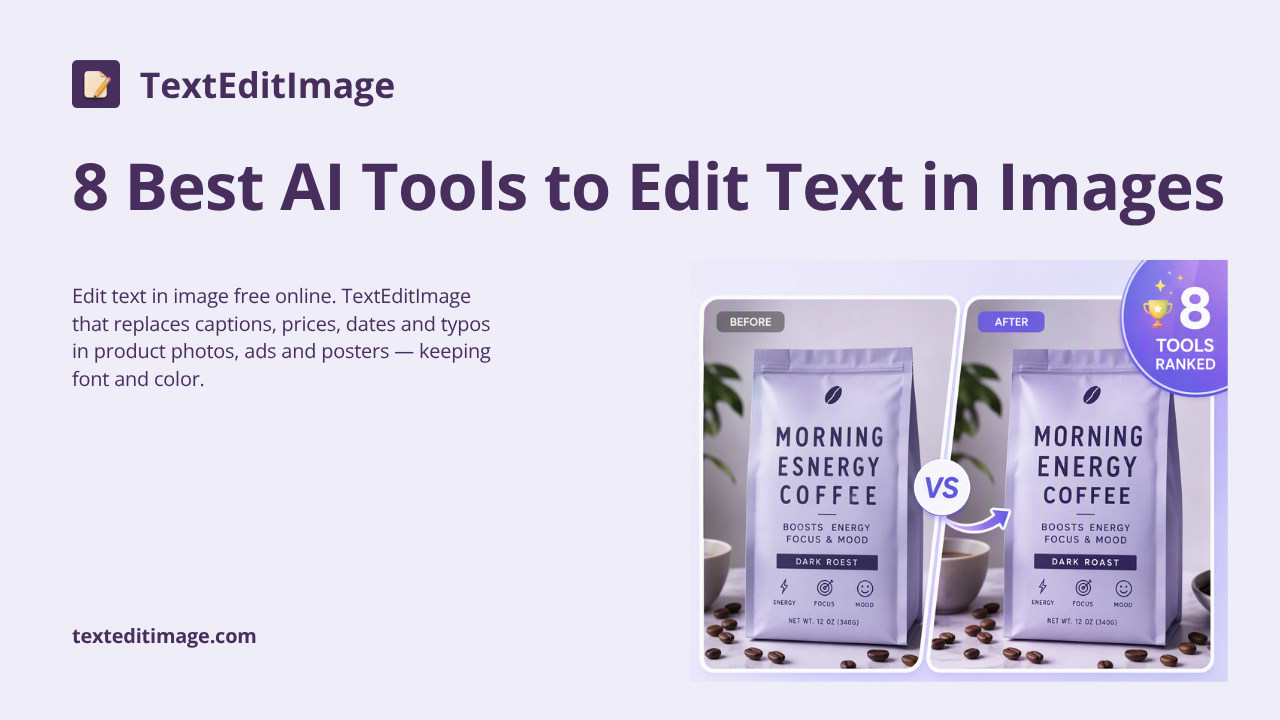
The 8 Best AI Tools to Edit Text in Images in 2026
Changing one word on a finished image used to mean reopening the design file or rebuilding the whole layout. In 2026, that job is a one-minute AI edit: upload the picture, type the replacement, and the tool redraws the text while keeping the original font, color and background. We tested the tools below on posters, screenshots and product photos. Here is what actually works, ranked.
The Shortlist at a Glance
| Tool | Best for | Font fidelity | Free option | Skill needed |
|---|---|---|---|---|
| TextEditImage | Fast conversational text swaps | High — keeps original font | Yes, free credits | None |
| EditTextImage.com | One-line replacements with typed old/new text | High — font sampled from pixels | Yes, one free edit | None |
| ReWords.AI | OCR-guided text replacement | Medium-high | Yes, free trial credits | None |
| Cleanup.pictures | Removing text, not replacing it | N/A (removal) | Yes, 720p cap | None |
| Photopea | Free manual control, Photoshop-style | High if you match font | Yes, fully free | Intermediate |
| Fotor | All-in-one suite with text removal | Medium | Yes, with account | None |
| Canva | Retype when you have the original file | Medium — close font only | Yes, free tier | Low |
| Adobe Photoshop | Pixel-perfect professional edits | Very high | No | Advanced |
1. TextEditImage — Best Overall for Quick, Natural Edits
TextEditImage is the tool we built, and it is first on this list because it answers the question this article asks: edit text in an image without the result looking fake. Instead of a form with "old text" and "new text" fields, you describe the change in plain language — "replace the price with $9.99 and keep the label design" — and the AI reads the existing lettering, matches the font and color, and redraws the words in place.
It handles the common cases well: product labels, posters, screenshots with typos, dates and prices on banners, and the garbled text that AI image generators love to produce. The background behind the old words is reconstructed, so there is no smudge where the original text used to sit.
The downside is the same as every AI tool here: very small, ornate or heavily skewed lettering is harder than clean straight headlines. Start with a free credit, no card needed, and see whether the result on your specific image is good enough.
2. EditTextImage.com — Best When You Know the Exact Old Text
EditTextImage.com is a close competitor with an honest positioning: you type the exact original words and the replacement, and the engine samples the typography from the pixels. It targets 30–60 second edits with no font installation, works on PNG/JPG, and exports around 2K. Its Acceptable Use policy blocks document fraud use cases, which is a sensible line.
It is genuinely good at the one-line swap when your text is clear and reasonably sized. The trade-off is a slightly more rigid workflow — you must know exactly what the current text says, which is a problem when the source has a typo you cannot read at small resolution.
3. ReWords.AI — Best for OCR-Assisted Selection
ReWords.AI detects text blocks automatically with OCR, then lets you click the words to change them. That is a real convenience: no guessing the exact string, just select the line and type the new one. It also lets you add style notes like "make it bold" or "use a handwritten style."
It works on screenshots, posters and product photos, uses a credit model (roughly one credit per edit at standard resolution), and is one of the few tools with a stated batch/API roadmap. On very stylized fonts the match is less reliable than the pixel-sampling tools above, but for everyday UI screenshots it is a solid pick.
4. Cleanup.pictures — Best for Removing Text Entirely
Sometimes the right edit is to delete the words, not replace them. Cleanup.pictures is a browser tool where you brush over text and the AI fills in what was underneath. No account for basic use, works on desktop and mobile, and it is the fastest option for killing date stamps, watermarks or captions on simple backgrounds.
The free tier caps export at 720p, and results get softer on busy textures — brick walls and patterned cloth give it trouble. It is a single-purpose tool, but for pure removal it is the quickest thing we tested.
5. Photopea — Best Free Manual Option
Photopea is a full Photoshop clone that runs in the browser, free, with no watermarks or resolution caps. Its Content-Aware Fill does a surprisingly clean job of deleting text on complex backgrounds, and power users can go further with the clone stamp and healing brush.
Expect a real learning curve — layers, selections and fill options are not beginner territory. But if you want maximum control without paying Adobe, this is the tool. For text replacement it still requires you to match the font yourself, which is where the AI tools one through three save the day.
6. Fotor — Best All-in-One Editor
Fotor bundles AI text removal into a wider photo editor, so you can remove words, crop, adjust color and export without switching tabs. It detects text automatically and removes it with a button click — no brushing required.
The interface is busy and the free tier asks for an account, but as a multi-step workflow tool it is hard to beat. Keep in mind its text workflow is removal-first; for replacing text with the original font, the dedicated tools above do it better.
7. Canva — Best When You Still Have the Original File
Canva's honest advantage is when the design is still an editable Canva file: you change the text layer and export, end of story. For flattened images, you are back to overlaying a text box and manually matching the font, which rarely looks identical.
If the original font is a common one and the text is straight, a careful Canva retype can pass. As the tool in the list with zero AI text replacement, it belongs here for the "I have the source" case, not the "I only have a JPG" case.
8. Adobe Photoshop — Best for Pixel-Perfect Professional Work
Photoshop remains the ceiling: Match Font, content-aware removal, exact tracking and shadow control produce results nothing else touches. Its Generative Fill also makes text removal impressively easy in the 2026 versions.
It costs real money, has a steep learning curve, and takes minutes per edit where the AI tools take seconds. Professionals doing high-volume or brand-sensitive work will still pay for it; everyone else can skip straight to the first three tools on this list.
How to Choose
Pick by what you have and what you want:
- You have a flattened JPG and want natural replacement → TextEditImage (start with the homepage text editor to see a result on your own image) or EditTextImage.com.
- Forgetful of the exact source text → ReWords.AI's OCR selection.
- You want to remove text, not swap it → Cleanup.pictures.
- Free, hands-on control → Photopea.
- Still have the design file → Canva.
- Money is no object and quality is everything → Photoshop.
FAQ
Can these tools really keep the same font? The best ones sample the typeface from the pixels in your image, so they do not need to know or install the font. Clean, straight, reasonably sized text matches almost perfectly; tiny ornate lettering is where results start to wobble.
Are there free options? Yes. Every tool in the top six has a free tier or free credits to start. The trade-offs are resolution caps, account requirements or daily limits — enough to try them and pick a winner for your workflow.
Do these work on screenshots? Screenshots are actually the easiest case: text is straight, high-contrast and on clean UI backgrounds. All the AI tools here handle them well, and that is why screenshot localization is one of the most common use cases.
Try the Fastest One First
If your only goal is to fix the text fast, try our AI image text editor on the homepage — upload, describe the change, and it keeps the font and background. The free online text editor accepts PNG and JPG, works straight in the browser, and you can compare the result against the manual options in this list before deciding what fits your workflow.