
Edit Text on Screenshot Online, Free
Try an example
Built For Real Work
Edit text on any screenshot in seconds
Drag the slider to see how TextEditImage edits text on a screenshot while keeping everything else pixel-perfect.
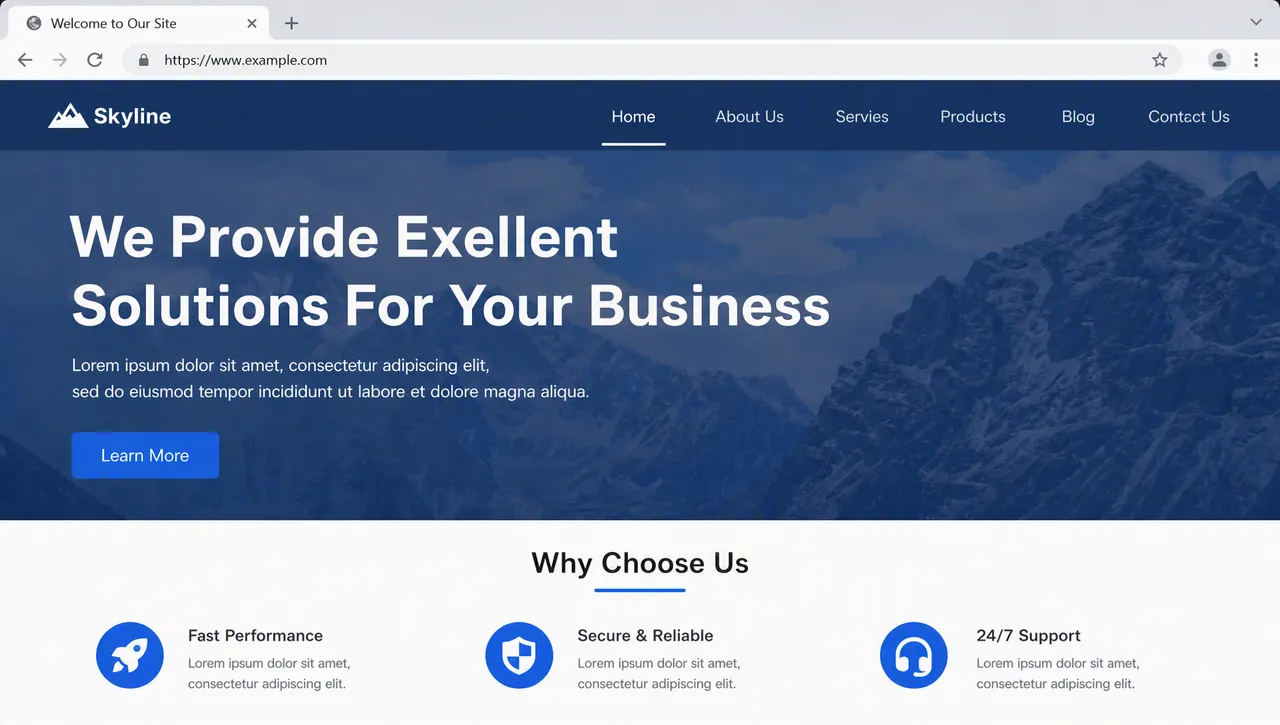
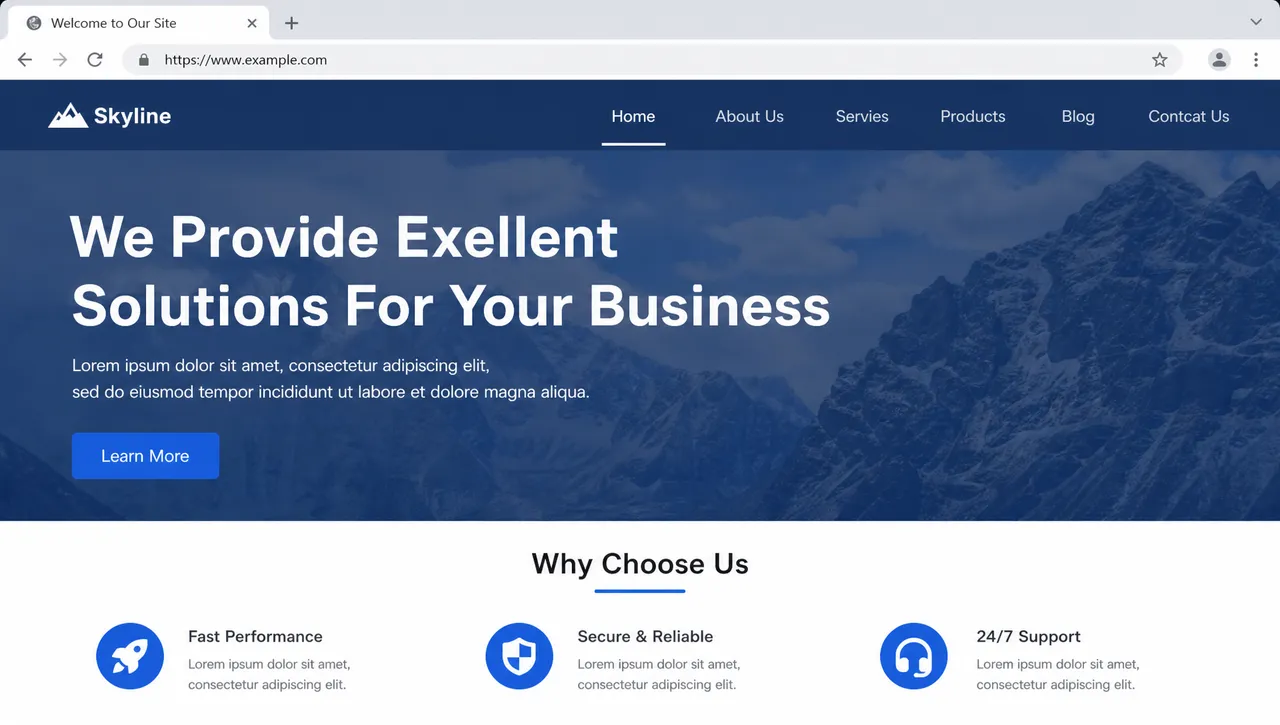
Edit text on a product screenshot
Spot a misspelled word? Replace it in seconds while keeping the button, font and background exactly as they are when you edit text on screenshot.
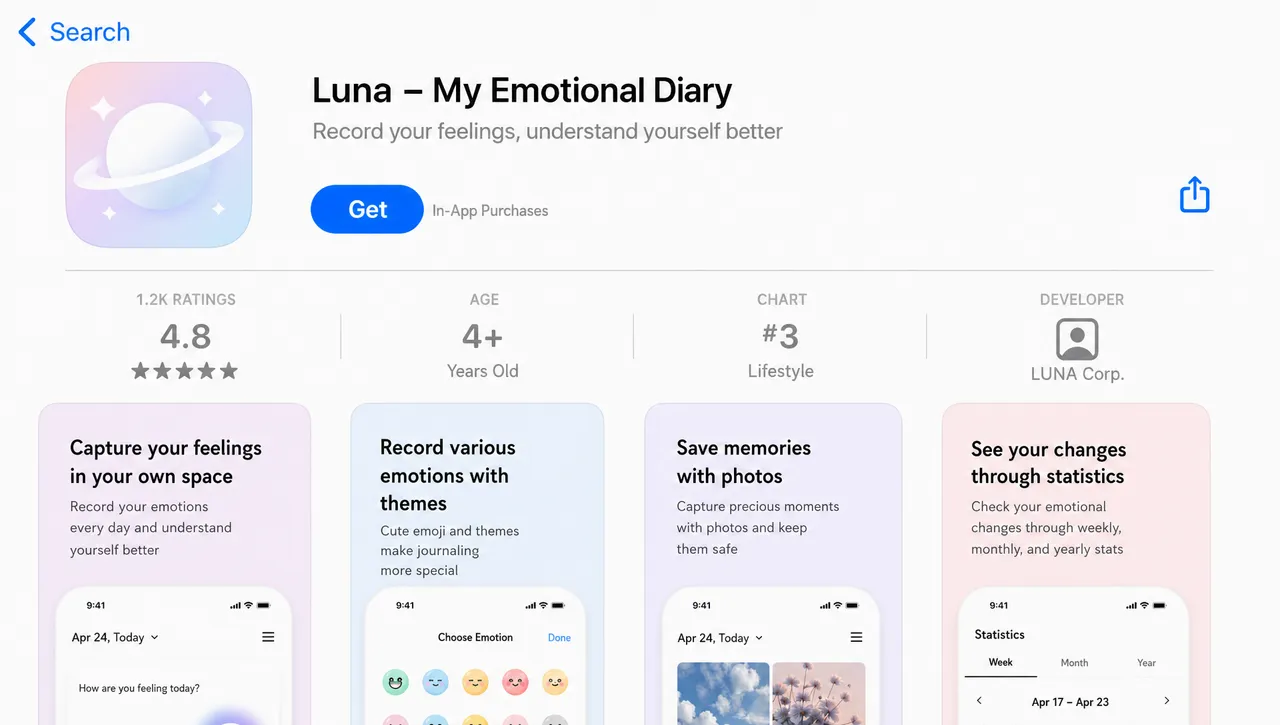
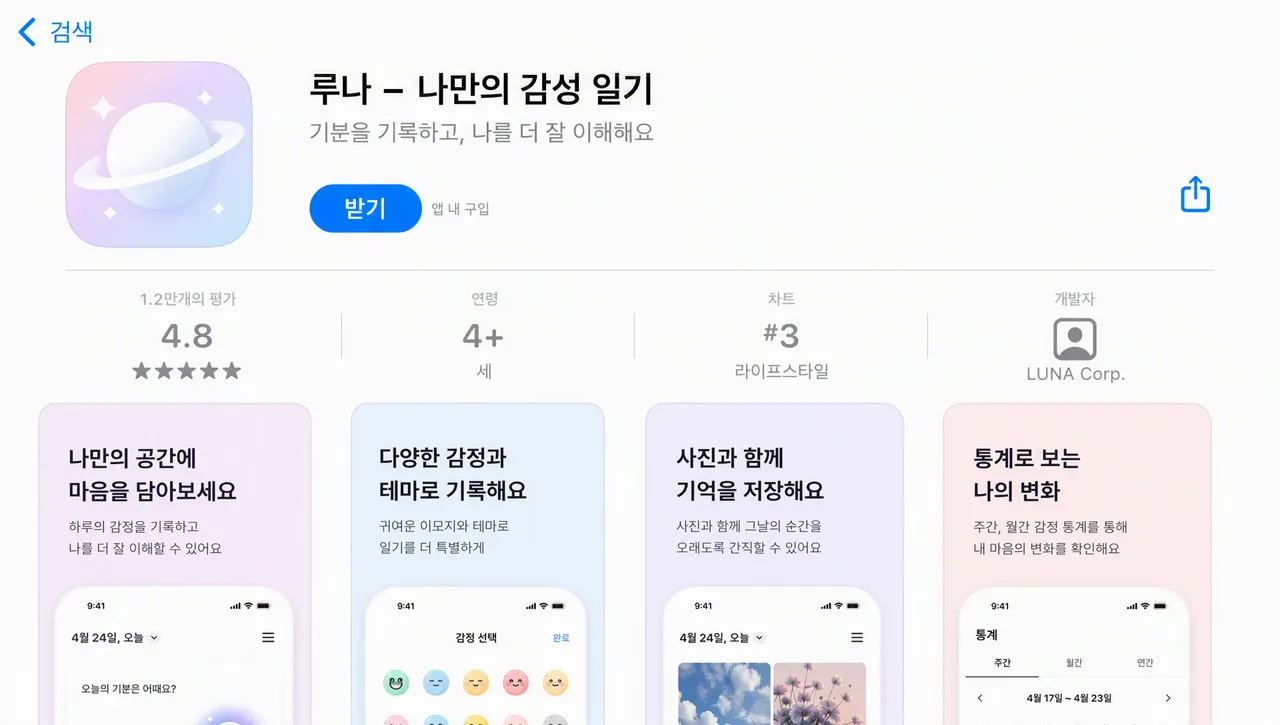
Localize app store screenshots
Translate the headline and captions of your app screenshots for new markets without redoing the design — the UI frame and art stay untouched.


Update a price or date on a banner
Pricing changes, campaign dates and promo text move fast. Edit the numbers on the screenshot instead of rebuilding the whole creative.
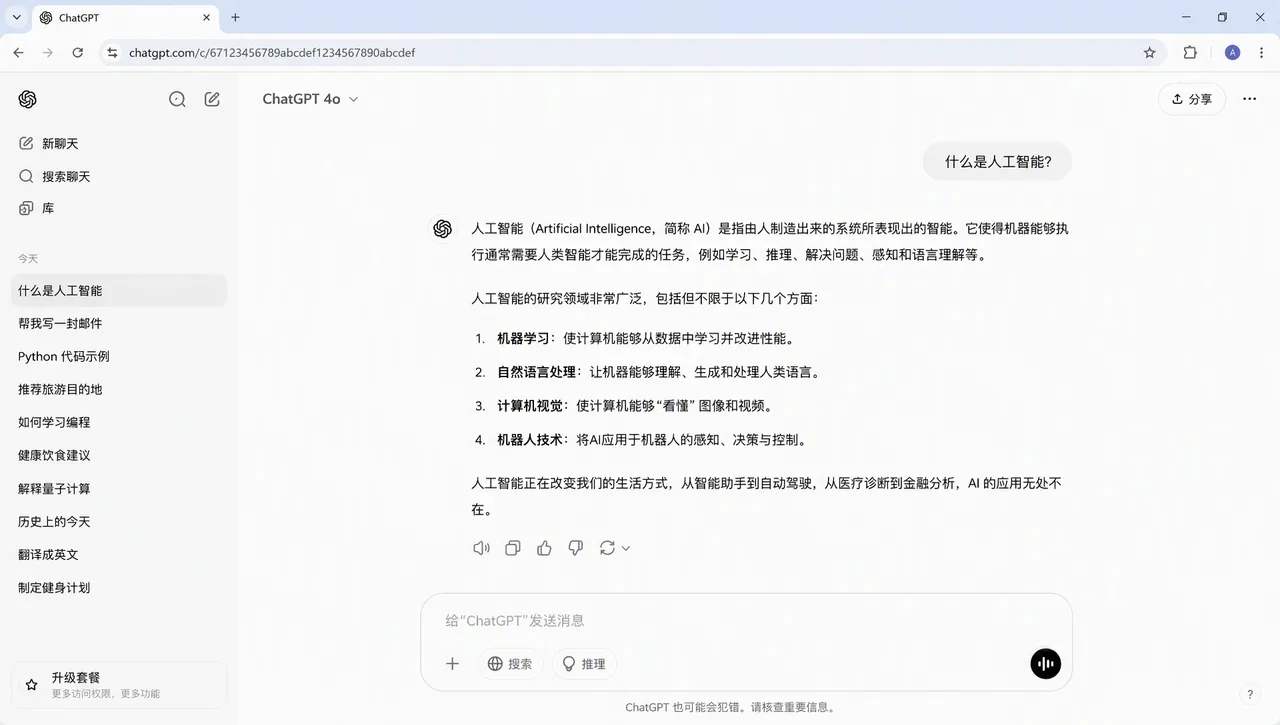
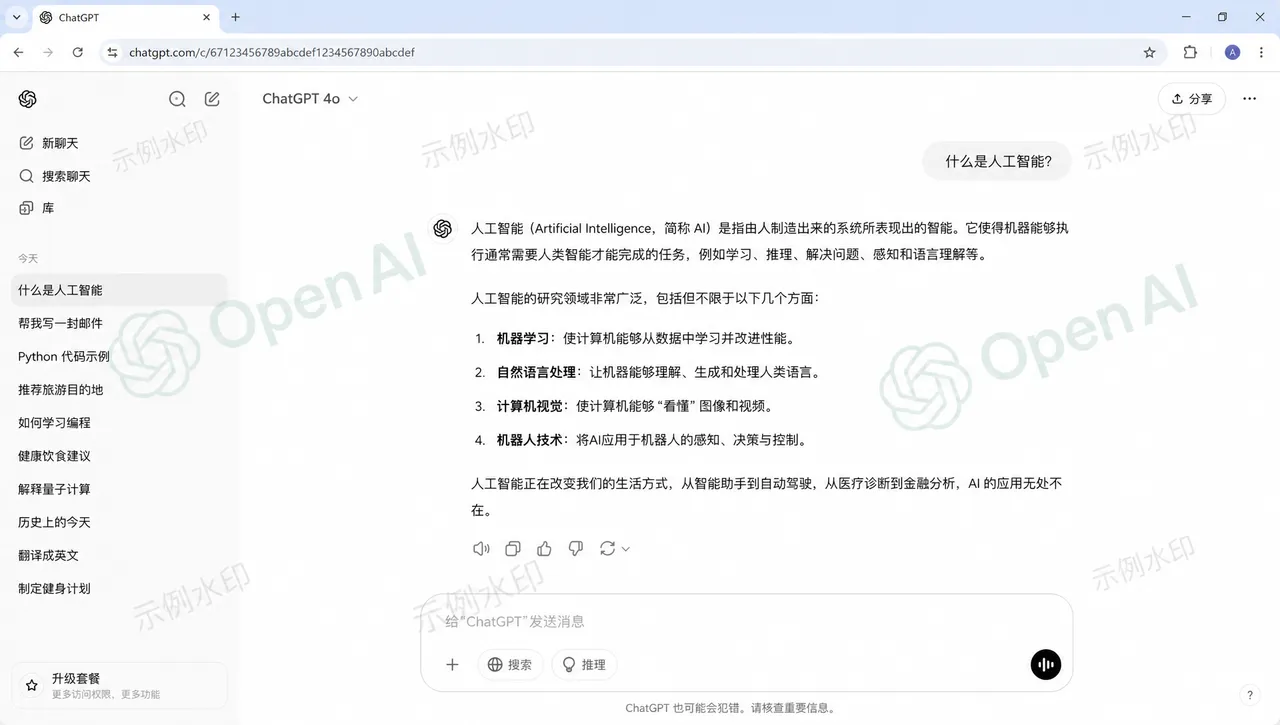
Remove text from a screenshot
Clean logos, watermarks or unwanted labels off a screenshot — the AI repairs the background so it looks untouched.
Why TextEditImage
Edit text on screenshot while keeping every pixel
Most editors paste a text box on top of your image. TextEditImage redraws the words in place, so the result looks native.
Edit text on screenshot with a prompt
Type the old text and the new text — “change Join Now to Start Free” — and the AI does the redraw for you.
Keeps the original font and style
When you edit text on screenshot, the AI reads the typeface, weight, colour and perspective of the existing text, then blends the replacement to match.
Nine models for every screenshot edit
Pick the engine that handles your screenshot best — curved text, glassmorphism labels and badges included.
Repairs the background automatically
When text comes off, the pixels behind it are rebuilt from the surroundings — no empty boxes, no smudges.
3 Simple Steps
Edit text on screenshot in 3 steps
No design skills, no Photoshop, no learning curve.
Upload your screenshot
Drag in a PNG, JPG or WebP capture of anything: an app, a dashboard, a message thread, an invoice.
Describe the change
Tell the AI the original text and the replacement when you edit text on screenshot — “change Join Now to Start Free, keep the style”.
Download the result
Preview the edited screenshot, tweak if needed, and download a sharp 2K image ready for docs or app stores.
The Difference
Best way to edit text on screenshot
The best way to edit text on screenshot: Photoshop is powerful but slow, free editors paste text over your image, and our AI editor redraws it in place.
| TextEditImage | Photoshop | Free editors | |
|---|---|---|---|
| Design skills required | None | High | Low |
| Time to edit one word | ~30 seconds | 10–30 minutes | 5–10 minutes |
| Keeps original font & layout | Yes (AI) | Only if you rebuild it | Mostly overlays text |
| Background repair after removal | Automatic | Manual (clone stamp) | Rarely |
| Free to start | Yes | Trial only | Often watermark |
“I used to rebuild screenshots in Figma just to fix one word. Now I can edit text on screenshot in under a minute and the result still looks like the original design.”
“As a marketer, I edit text on screenshot every day for social assets. This tool keeps the font and background intact, so I never need to ask a designer for small copy tweaks.”
“Localization used to take forever. Now we edit text on screenshot in multiple languages and the UI still looks native. It shaved days off our app store release cycle.”
“I was skeptical, but the AI actually matched the original font when I edited text on screenshot. The background repair is the part that sold me.”
“My support team sends annotated screenshots daily. Being able to edit text on screenshot without Photoshop lets us turn around help docs in minutes.”
“I edit text on screenshot for pitch decks and investor updates. It looks professional, saves me from recreating slides, and the free start is genuinely useful.”
FAQ
Edit text on screenshot: FAQ
Can I edit text on screenshot for free?
Do I need Photoshop or design skills to edit text on screenshot?
Will the edited text match my screenshot's font and style?
Can I remove text from a screenshot instead of replacing it?
What screenshots can I edit text on?
Is it safe to upload screenshots?
Ready to edit text on screenshot?
Start with one free edit — no credit card required. Then edit text on screenshot whenever you need it.