How to Change the Date on a Photo: Visible Text & EXIF
Learn how to change the date on a photo: edit visible date text on posters, tickets and screenshots with an AI text editor, or fix the hidden EXIF capture date with a metadata editor.
 TextEditImage Team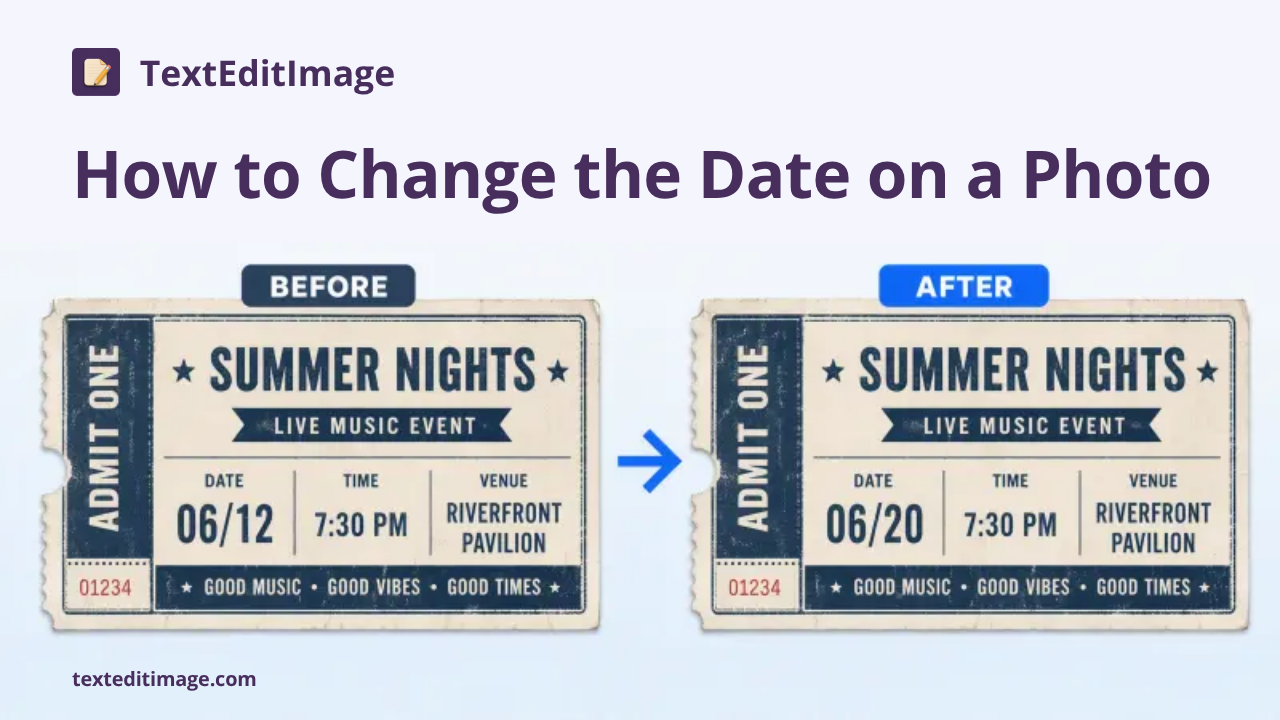
How to Change the Date on a Photo: Visible Text & EXIF
A photo can hold two different "dates", and too many guides mix them up:
- The visible date — the date printed on the image itself: a poster, a ticket, a screenshot with a timestamp, an event flyer or a camera watermark.
- The hidden date — the EXIF metadata stored inside the file (
Date Taken,Create Date,Modify Date) that photo apps use for sorting and timelines.
Depending on which one you need to fix, the right tool is completely different. The good news: both can be changed in under a minute, no Photoshop required.
This guide covers both.
When the visible date text needs to change
Changing a date that is burned into the image is a text-editing job, not a metadata job. Typical cases:
- An event poster or flyer was printed, then the date moved.
- A price tag, schedule or menu photo — and the file says one date while the printed text says another.
- A ticket stub, voucher or certificate photo where the date needs to be corrected.
- A screenshot with the wrong timestamp.
- A product photo in an ad where the date on the label is outdated.
The fastest way to change a visible date is to edit the date text right in the image — without the original design file.
Method 1: Change the date with an online AI text editor (recommended)
An online AI image text editor like TextEditImage reads the existing date text, replaces it with the new date, and keeps the original font, size, color, perspective and background — so the result still looks like the original image.
How to change the date on a photo with TextEditImage:
- Go to TextEditImage.com and upload the photo (PNG, JPG or WebP up to 10 MB).
- Type the date currently shown on the image into the "original text" field.
- Type the new date into the "replacement text" field.
- Press edit — the AI locates the date, swaps the text and restores the background.
- Download the finished 2K image.


No Photoshop, no font hunting, no content-aware fill. The rest of the image — people, product, background — stays pixel-perfect.
Method 2: Fix the date manually with Photoshop
If you already have Photoshop (or a similar editor):
- Use the Clone Stamp or Spot Healing Brush to remove the old date.
- Create a text layer and set the new date.
- Match the font, size, color and position with the original design.
- Export the file.
This works — if you have the original source file or a clean background area. Without it, matching the exact font and perspective takes time and skill.
Method 3: Use a design tool like Canva
Canva can remove the old date (with its Magic Eraser / Grab Text features) and add a new text element. It is a solid choice when you want to redesign the image at the same time, though matching the exact original font and look may take extra steps.
When the hidden (EXIF) date needs to change
The hidden date is the metadata that "Date Taken" shows in Photos, Google Photos, Lightroom and the Finder. The app reads it from the file itself.
Why it might be wrong:
- The camera or phone clock was set incorrectly.
- The battery died and the clock reset.
- You scanned old prints — scans usually carry no capture date at all.
- Photos were copied or exported and the metadata became mixed up.
- An old camera stored the date in the wrong time zone.
How to change the EXIF date of a photo
On iPhone / iPad: open the photo in the Photos app → tap the info button (i) → Adjust Date & Time — set the correct date and pick a time zone. You can batch-adjust several photos at once.
In Google Photos: open the photo → tap the three-dot menu → Edit date & time → set the correct date → save.
On Mac: select the photo(s) in the Photos app → Image → Adjust Date and Time, then enter the shift or the new date.
On Windows: right-click the file in File Explorer → Properties → Details — most date fields can be edited there.
For precise / batch edits (ExifTool): advanced users can rewrite DateTimeOriginal directly in the file:
exiftool "-DateTimeOriginal=2026:05:10 14:30:00" photo.jpg
All of these only touch metadata — the pixels of the photo are untouched.
Note: app-level edits (Photos, Google Photos) may only update each app's own database, not the EXIF inside the file. For a correction that survives export and sharing, edit the metadata in the file itself.
Visible date or EXIF date — which one do you need?
| What you want to do | What to change | Best tool |
|---|---|---|
| Fix a date printed on a poster, ticket, screenshot or watermark | Visible date text | Online AI text editor such as TextEditImage |
| Fix the "Date taken" shown by photo apps | EXIF DateTimeOriginal | Photos / Google Photos / ExifTool |
| Reorder photos after a wrong camera clock | EXIF date (file-level, batch) | ExifTool or the app's batch adjust |
| Change a date when you lost the source file | Visible date text | Online AI text editor such as TextEditImage |


Tips to make the new date look natural
Whichever method you use for visible date text, keep these in mind:
- Match the font — use the same typeface, or one with a similar weight.
- Keep the size consistent — the new date should have roughly the same height as the old one.
- Check the color — "black" text is often dark gray or navy; sample it with a color picker.
- Watch the spacing — "May 8, 2026" is shorter than "September 18, 2026"; the replacement may need a slightly smaller size or adjusted position.
- Check the perspective — if the date sits on a tilted surface (a sign, a box), keep the same angle.
This is exactly where an AI text editor shines: it reads the original typography, color and perspective, and renders the replacement so it blends in as if it was always there.
Frequently asked questions
Can I change the date on a photo without Photoshop?
Yes. Use an online AI text editor to change visible date text — upload the image, type the old and new date, download. For the hidden EXIF date, the Photos app on iPhone/Mac and Google Photos both have built-in date adjustment.
Does editing the date affect photo quality?
Changing the EXIF date affects metadata only — not a single pixel. Changing visible date text is a pixel-level edit; an AI editor rebuilds the replaced area so the result remains clean at 2K resolution.
What should I do if the photo app still shows the old date?
Some apps cache dates. Re-import the file, restart the app, or verify with an EXIF viewer. If an app only updates its own database (Photos, Google Photos), the file itself may still hold the old EXIF date — edit the file-level metadata for a change that follows the photo everywhere.
Is changing a date on a photo legal?
Editing dates on your own posters, tickets, marketing graphics and personal photos is normal image editing. Do not alter dates on IDs, receipts, financial documents or records with the intent to misrepresent them.
Related reading
- How to Edit Text in an Image While Keeping the Same Font — the typography-matching technique behind clean date swaps.
- Best AI Tools to Edit Text in Images (2026) — compare the top editors if you are still picking a tool.