How to Insert Text into a JPEG Image (3 Easy Ways)
Learn how to insert text into a JPEG image three ways: an AI text editor that matches the original font, Windows Paint, or free online tools. No Photoshop.
 TextEditImage Team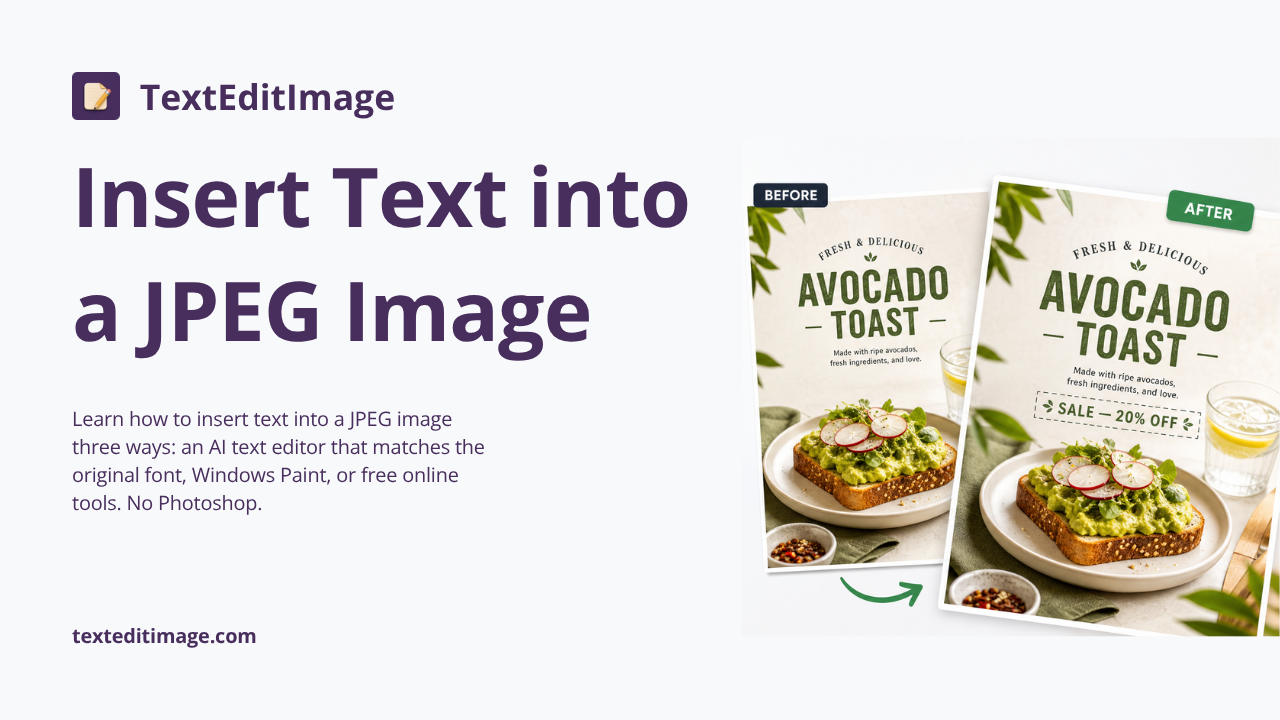
Inserting Text into a JPEG Is Trickier Than It Looks
Everyone has been there. You need to insert text into a JPEG image — a price on a product photo, a date on a flyer, a caption on a screenshot — and you open the nearest editor, type the words, and… they sit on top of the picture like a sticker someone forgot to peel. The font is wrong, the edges are sharp, the colors clash, and the whole thing screams "edited." If you have ever searched for how to insert text into a JPEG image, chances are that sticker-text moment is exactly the result you are trying to avoid.
Why does this happen? Because most people reach for the wrong tool. A JPEG is not a document where you can simply type; it is a finished image, and inserting text into it is a visual job — one that needs the letters to belong to the picture, not float above it.
This guide covers how to insert text into a JPEG image three different ways, from a free AI text editor that matches the original style to tools you already own. By the end, you will know exactly which method fits your situation — and how to keep the image quality from crumbling along the way.


Why Inserting Text into a JPEG Is Not as Simple as Typing
Before we get into the how, it helps to understand the two hidden obstacles. The first is the file format itself; the second is what "insert" really means.
The JPEG quality trap
JPEG is a lossy format. Every time you save a JPEG, it re-compresses the image and quietly throws away detail. If you open a JPEG in an editor, add text, and save it as another JPEG, you are compressing an already-compressed file — a process affectionately known as generational loss. Text added this way often ends up surrounded by ugly artifacts: banding in gradients, noise around the letters, and an overall softer look than the original.
This matters because most tools — including some very popular ones — save straight back to JPEG by default. Your first mistake with inserting text into a JPEG may already be baked into the export step.
The "sticker text" problem
The second obstacle is style. When you insert text into a JPEG with a generic editor, you get a generic font: Arial, Calibri, or whatever the tool defaults to. Meanwhile the picture might contain hand-drawn lettering, a bold display typeface, or text shot at an angle. Put Arial on top of that and the result looks like a ransom note — technically inserted, aesthetically divorced.
That is the difference between adding text and designing text into an image. The good news is that there is now a tool category built for the latter.
Method 1: Insert Text with an AI Text Editor (Most Natural Result)
If the text needs to look like it was always part of the picture — same font, same color, same lighting, same perspective — an AI text editor is the way to go. An online AI image text editor like TextEditImage reads the lettering already in your JPEG, learns its style, and draws your new words to match. You do not need Photoshop, you do not need to know the font name, and you do not need design experience.
How to insert text into a JPEG with TextEditImage:
- Go to TextEditImage.com and upload your JPEG (up to 10 MB).
- Type the text you want to insert and describe where it should go — for example, "add 'Sale – 20% off' under the product name."
- The AI studies the existing letters in the image to determine the font, size, color and angle.
- Click edit, and the new text is drawn directly onto the image in matching style.
- Download the result at up to 2K resolution.
The key difference from a paint-by-numbers editor: the letters merge with the photo. If the original image has a price tag in italic bold, your inserted price tag will match it. If the text in the picture is rotated by a camera angle, your new text will follow that perspective too.

When the AI method wins
The AI approach shines in these situations:
- Product photos — insert prices, labels or promo text that must look professionally placed.
- Posters and flyers — the design was flattened into a JPEG long ago; you still want new lines to match the original artwork.
- Screenshots — annotate or relabel UI elements without the text looking out of place.
- Perspective and angle — text shot at an angle stays realistic, something no plain editor can do automatically.
It is also the fastest route if you do not own design software. You can insert text into a JPEG from your browser, on a laptop or a phone, with nothing to install.
A real example: the poster that had to stay in its own font
Say a café runs a weekly promo and flattened their menu flyer into a JPEG months ago. Now they need to insert text into that same JPEG — "Live Jazz Fridays" under the heading. The original lettering is a hand-drawn display font, the words sit at a slight angle, and no font menu on earth contains that typeface. In a generic editor, the new line looks like it was typeset on a different planet. With an AI text editor, the tool studies the existing letters, picks up the weight and the slant, and draws the new words as if the designer had never left the room. That is the difference between inserting text and making it belong.
Method 2: Insert Text with Windows Paint (Free, Built-in)
If you just need a quick caption and the style does not need to match anything, Windows Paint is a perfectly fine — and free — option. It has been hiding on every Windows machine for decades, and it is still one of the fastest ways to put words on a picture.
How to add text in Paint, step by step:
- Right-click the JPEG file and choose Open with → Paint.
- Click the "A" text tool in the toolbar.
- Click and drag on the image to create a text box.
- Type your text, then use the font and color options in the ribbon to style it.
- Drag the text box into position, then save — and here is the important part — use File → Save As and choose PNG for the format. This avoids the JPEG quality trap we talked about.
Where Paint falls short
Paint has three honest limitations. First, the fonts are your system fonts — there is no way to match lettering that already exists in the JPEG. Second, the text box sits on a solid background unless you carefully use the transparent-selection trick, which takes patience. Third, the text cannot rotate along a perspective or follow curves. For a straight, flat caption, Paint is fine; for text that should look designed, it is not.
Method 3: Insert Text with Free Online Tools
Between the AI editor and Paint sits a whole shelf of free online tools. Sites like jpg.now, NanoImage and ImageTextEditor let you drop in a picture, type a caption, pick a font, and download the result in seconds — no signup, no install, and most of them process the image entirely in your browser.
What online editors are genuinely good at:
- Meme-style captions — big white text with a black outline. They are built for this.
- Simple watermarks — semi-transparent text over a corner, fast and repeatable.
- Social media graphics — a photo plus a slogan, good enough for a quick post.
- Phone use — most of these work in a mobile browser, which Paint cannot do.
What they cannot do: match the existing typography of the image, keep text realistic on angled surfaces, or preserve quality if you export back to JPEG carelessly. They are a bridge, not a destination. When the text needs to look native to the photo — which is the whole point of inserting text into a JPEG in the first place — an AI text editor is the better tool.
Pro Tips: Insert Text into a JPEG Without Losing Quality
Whichever method you pick, these four habits will keep your JPEG looking sharp.
Edit a PNG copy, then export
Open the original JPEG, insert your text, and save the working file as PNG. PNG is lossless, so no extra detail is destroyed while you work. When you are happy, export the final version back to JPEG only if you actually need a smaller file — and keep the PNG as your master copy.
Pick the right export quality
If you must export JPEG, set the quality slider to 90% or higher instead of the default 75–80%. The file is bigger, but the difference around your inserted text — no banding, no noise — is worth it. This one move avoids most of the quality complaints people have after inserting text into a JPEG.
Let the AI handle perspective
If the text in your photo follows a camera angle, a flat text box will always look wrong. AI editors (Method 1) compute the perspective from the surrounding letters automatically. There is no manual equivalent — do not fight the angle with rotation sliders; let the tool do it.
Check at 100% zoom before downloading
Zoom into the area around your inserted text. Look at the edges of the letters — are they clean? Does the color sit naturally against the background? A two-second glance at 100% zoom has saved more bad exports than any tips list.
Which Method Should You Use?
| Your situation | Best method | Why |
|---|---|---|
| Text must match the original font and style | AI text editor | Reads the existing lettering and matches it |
| One-off caption, style does not matter | Windows Paint | Free, built-in, done in two minutes |
| Meme text or a quick watermark | Online text tool | Purpose-built, one click, no install |
| Text on a product photo or poster that sells | AI text editor | Looks professionally placed, keeps the JPEG sharp |
| Inserting text on your phone | AI editor or online tool | Both run in the browser, nothing to download |
Frequently Asked Questions
Can I insert text into a JPEG without Photoshop?
Yes — all three methods in this guide work without Photoshop. For a natural-looking result, an AI text editor like TextEditImage replaces the need for manual font-matching entirely.
Does inserting text reduce image quality?
Only if you re-save as JPEG at low quality. Edit a PNG copy and export at 90%+ quality and the inserted text will look cleaner than the sticker-text approach that most tools produce by default.
Can the inserted text match the original font?
With a generic editor, no — you get whatever your system fonts offer. With an AI text editor, yes: it analyses the lettering already in the image and draws the new text in the same font, size and color.
Can I insert text into a JPEG on my phone?
Yes. Both the free online tools and the AI editor run in a mobile browser. The AI route is especially handy on a phone because you do not need to manage font files or layers.
Is inserting text the same as replacing text?
Not quite. Replacing means the old words disappear — the AI recovers the background behind them and writes new letters in their place. Inserting means adding new words without touching the existing ones. Both are quick with an AI editor, and which one you need only depends on what the picture requires.
Wrapping Up
Inserting text into a JPEG image comes down to one honest question: does the text need to look like it belongs, or just exist? If the answer is the former — a product photo, a poster, a screenshot, anything where the words are part of the design — an AI text editor keeps the inserted text inside the image's original font and style. If the answer is the latter, Windows Paint or any free online tool will do in two minutes. Either way, edit on a PNG copy and export at high quality, and the JPEG you finally share will look as sharp as the day it was made.
Related Reading
- How to Edit Text in Image With Same Font, Step by Step — the font-matching technique behind natural-looking inserted text.
- How to Change the Date on a Photo — a classic real-world case of inserting (and replacing) text in a photo.